

With Dictionaries, you can have an interactive searchable dictionary for your fictional languages. The Dictionary feature is part of the Language template, but it can also be embedded in any other article.
Using the dictionary
To create your dictionary:
- Create a Language article and give it a title.
- Click the Dictionary button in the bottom toolbar:

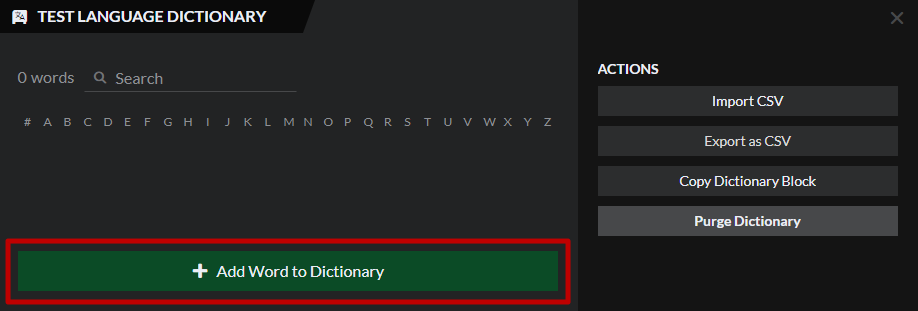
- Click the "Add Word to Dictionary" button to begin:
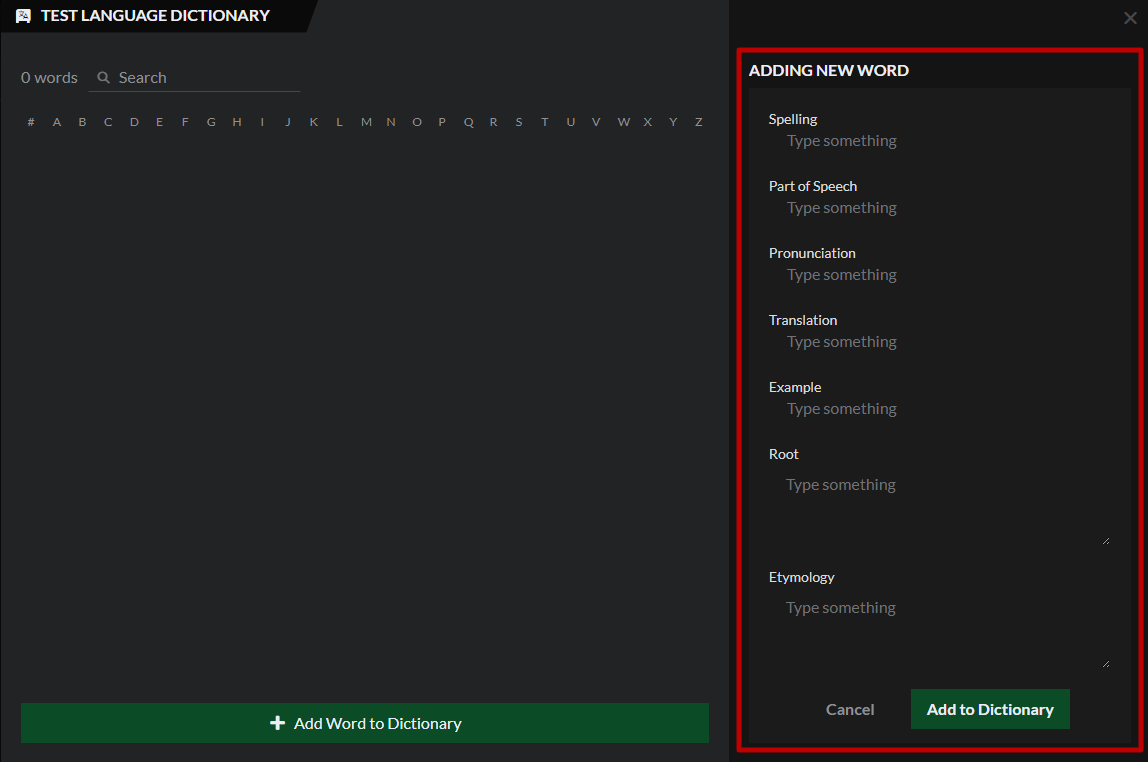
This will let you add a new word using the fields on the right. The only required field is Spelling.
Dictionary options
The Dictionary window lets you browse your words, and in view mode the Language article will also get a dictionary widget with a search field. Additionally, the "Actions" section on the right has four options:
- Import CSV: This will open a text field where you can import CSV data for the dictionary, either by copy-pasting or uploading a CSV file. In the file, each row should be a word, and the columns should be, in this order: Spelling, Pronunciation, Part of speech, Translation, Example, Root, and Etymology.
- Export as CSV: This will generate and download a CSV field of the full dictionary.
- Copy Dictionary Block: If you want the dictionary to appear in a different article, click this button to copy the embed BBCode, and paste it in an article.
- Purge Dictionary: This will completely and irreversibly delete the entire dictionary! Once a dictionary is purged, there's no way to get its contents back.